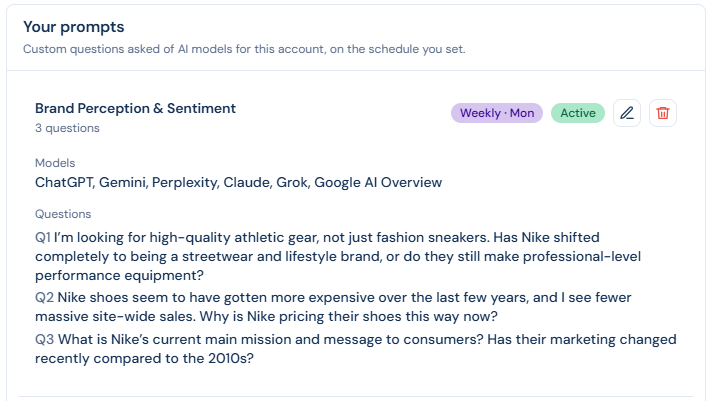
People often ask AI tools for help, policies, or recommendations before they ever visit your website. While other features—like Sector Discovery and AI Profiles—show how AI views your specific organisation, the Your prompts feature allows you to see exactly what AI tells people when they ask questions about your broader industry or world. By asking AI the exact questions your audience asks on a regular schedule, you can audit the information they are receiving—checking if it is right, if it is current, and whose information is shaping the answer.
Here is how to navigate the dashboard to uncover insights from your data.
Viewing Your Data
When you open the dashboard (located in the navigation drop-down AI View > Your prompts), your data is organised into three distinct tabs:
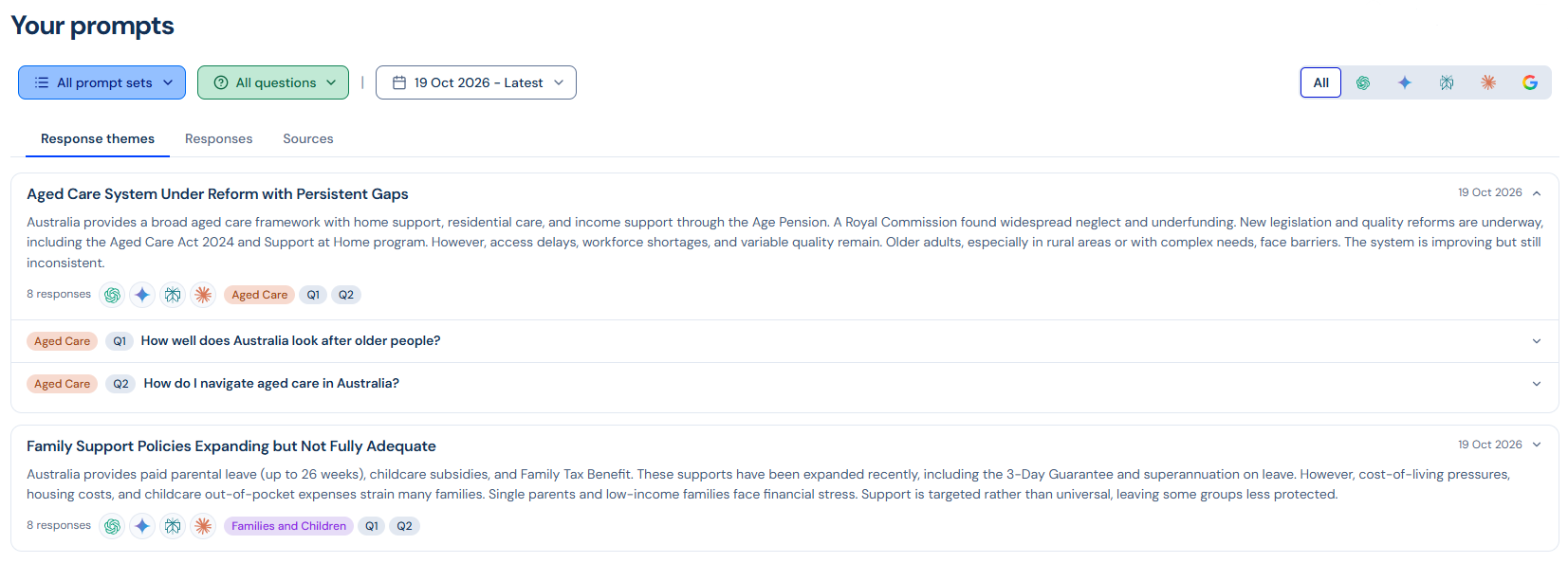
- Response themes tab: This is your high-level overview. It groups similar answers together so you can quickly spot trends without reading every individual response. Each theme is displayed as a clickable card with a headline, summary, and response count. Click anywhere on a card to expand it and see exactly which questions and models contributed to that theme.
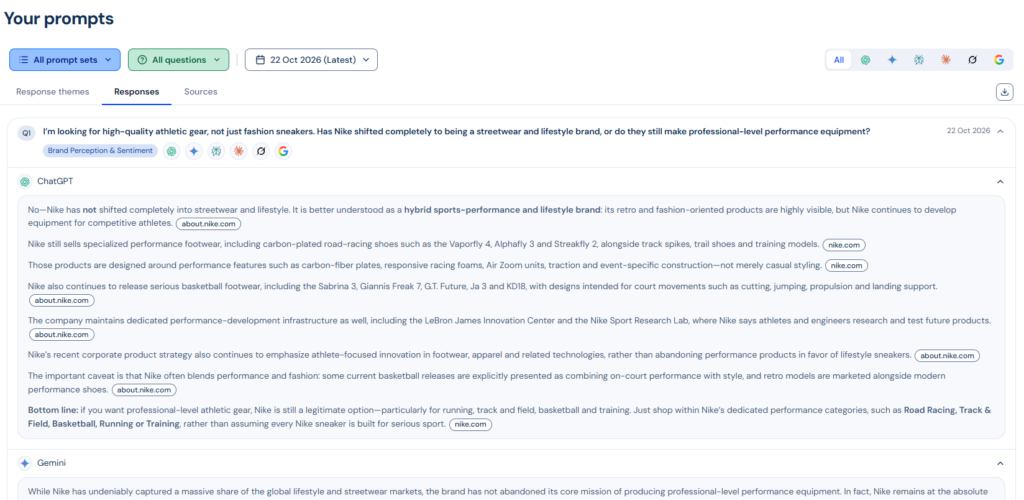
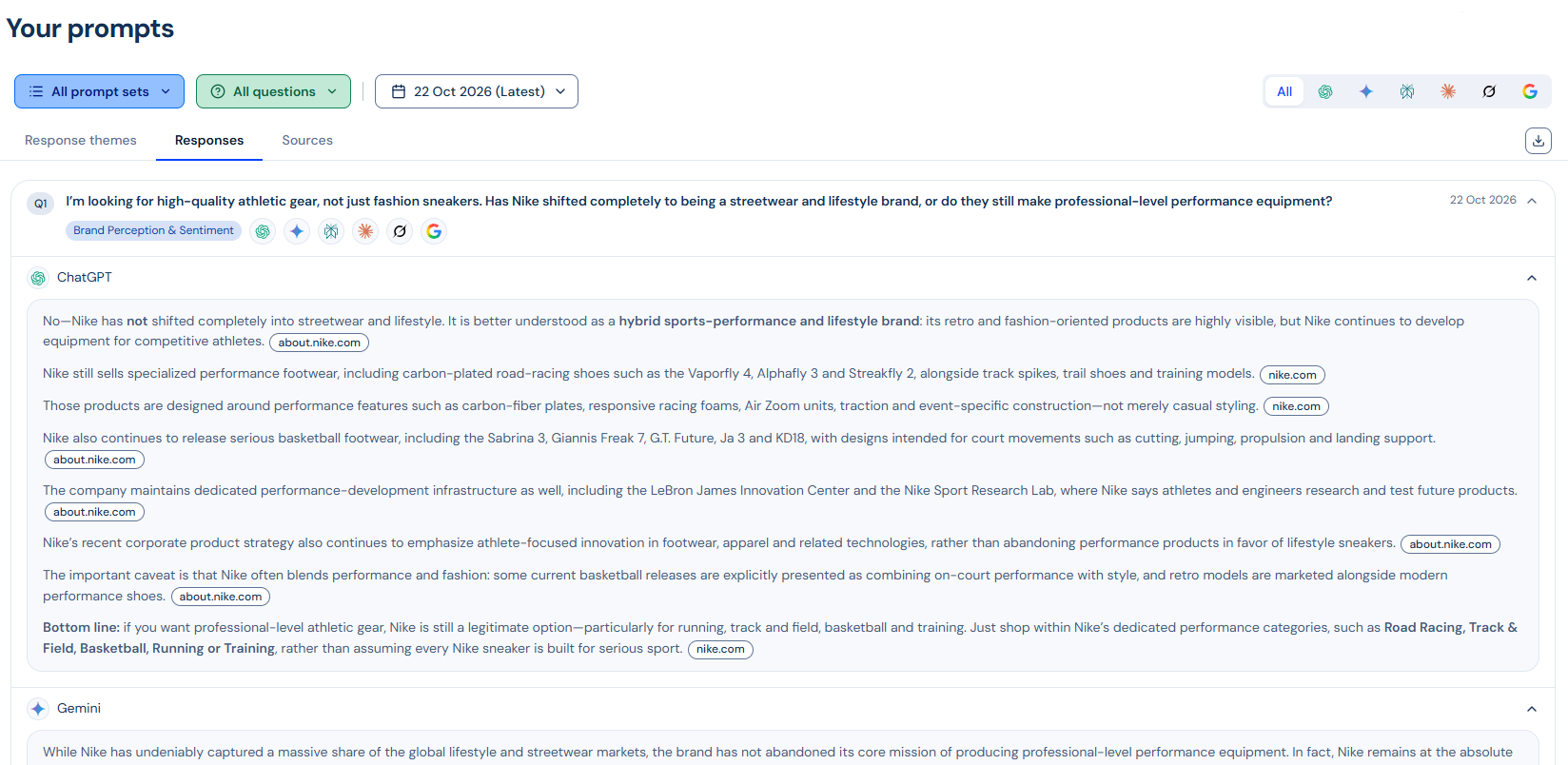
- Responses tab: Go here to read the exact, raw answers provided by each AI model. Inside a question card, you can open sections for specific models (like ChatGPT or Gemini) to read their text. Any sources the AI used will appear as clickable badges directly inside the answer. (Note: If a question was previously removed from your setup, it will still appear on older dates but will be marked with a slashed icon and an “(inactive)” label).
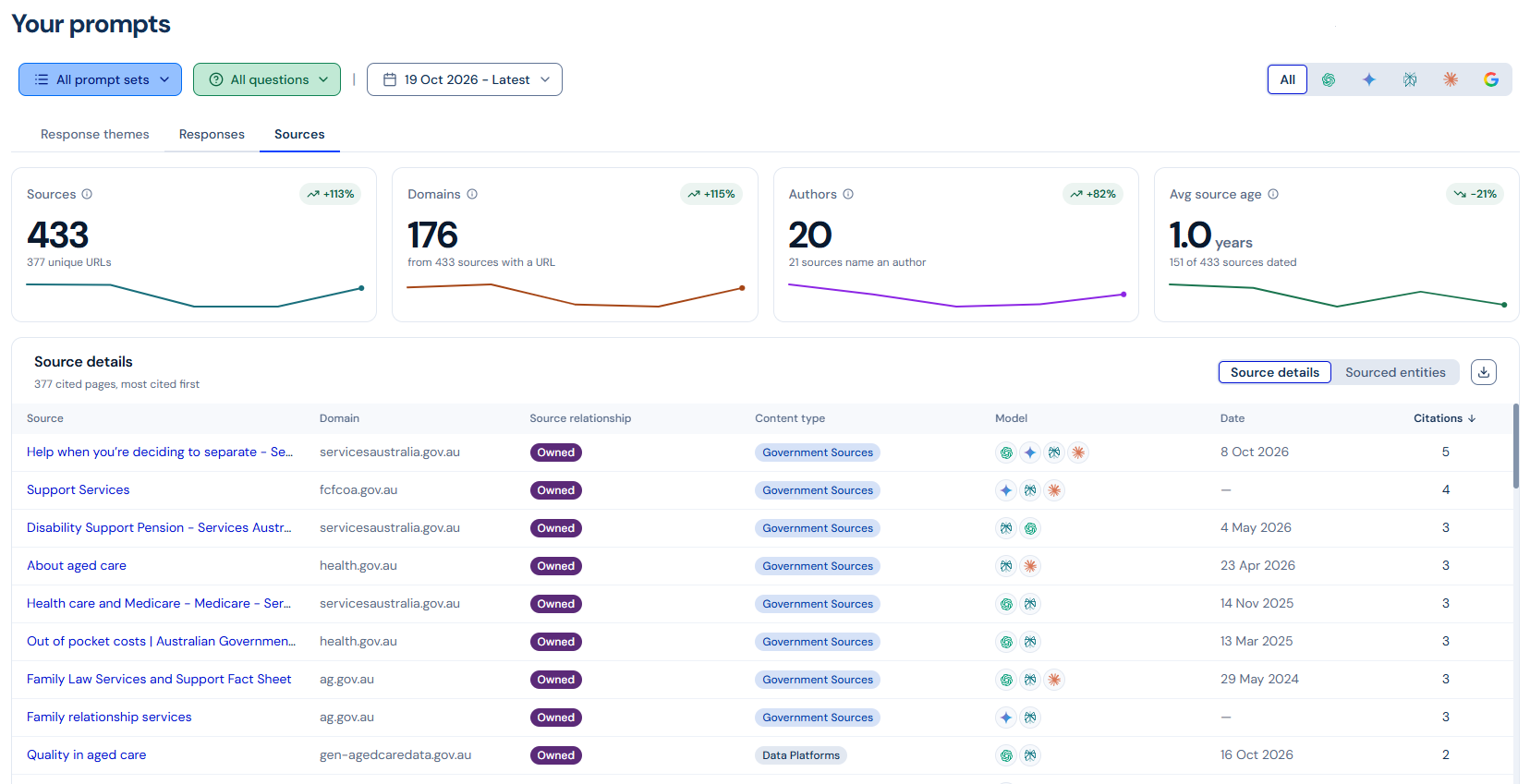
 Sources tab: This tab breaks down the specific websites and entities the models referenced to build their answers. Understanding your sources shows you exactly who is shaping the AI’s answers, helping you know where to take action.
- Metric Cards: At the top, track your total unique URLs, distinct domains, named authors, and the average age of the cited pages. A small trendline shows how these numbers have changed over the last 12 months.
- Data Tables: Below the metrics, toggle between Source details (every cited page, its publish date, and content type) and Sourced entities (specific organisations or people mentioned, including the sentiment of the mention and the exact quote).
Refining Your View
Use the filter bar at the top of the dashboard to narrow down the data shown across all three tabs
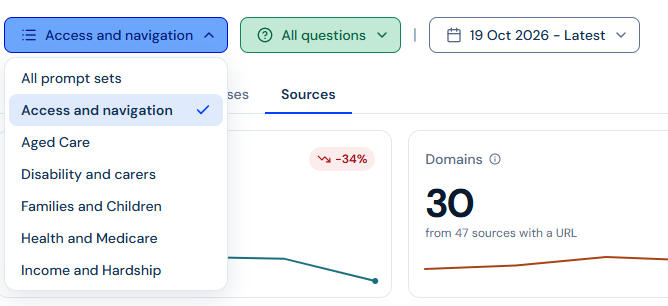
- Prompt set: Focus on a specific group of questions, or select “All prompt sets” for a complete view.
- Question: Drill down to see how the models answered one specific question.
- Date selector: View data from a specific day or apply a custom date range to see historical results.
- Model: Filter the entire dashboard by a specific AI engine, such as ChatGPT, Gemini, Perplexity, Claude, or Google AI Overview.
Exporting Your Results
If you need to share your findings or run external analysis, you have multiple export options to easily download your data to Excel:
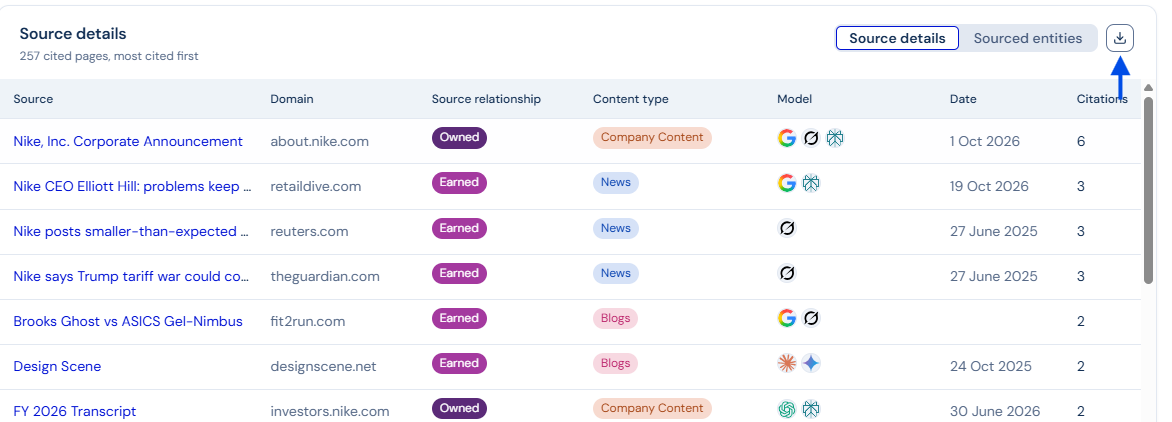
- Full Data Exports: Click the download icon on the navigation tab row to perform a full export of all responses matching your selected filters. This full export offers two formatting options:
- One row per response: Exports each model response onto a single row, with multiple sources and related data values separated by a pipe (|) in the data columns.
- One row per source: Exports each extracted source onto its own row, with the corresponding model response appearing duplicated in the response column for easy source-level analysis.

- Table Exports: Navigate to the Sources tab and click the Export button (download icon) located above the data tables to download a spreadsheet of all the source or entity rows currently visible in your filtered view.
Best Practices for Questions
You get to decide which questions to ask, and you will consult with our support team to get them officially set up in the system. As you brainstorm ideas to share with us, keep these best practices in mind:
- Broaden your scope: The more niche your question is, the more niche the AI’s answer will be. Instead of asking narrow questions like “How easy is my service to deal with?”, ask exactly how a real person would, such as “How easy are government services to deal with?”. This helps you see if you show up naturally in the broader conversation.
- Group by situation: Think about organising your questions into sets based on themes or life situations (such as value, service access, or hardship) to mirror how your audience actually looks for help.
Checking Your Setup
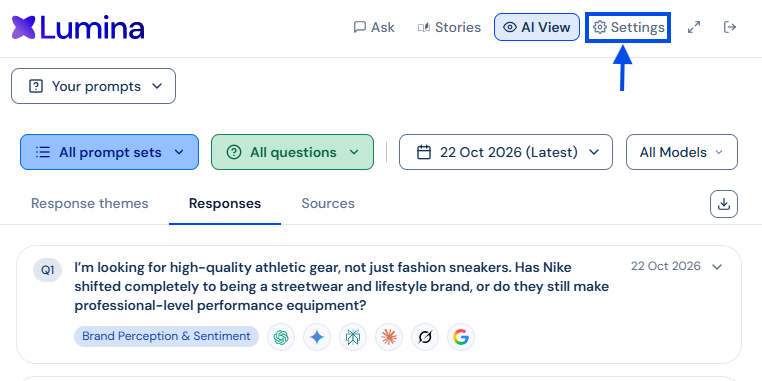
If you want to review how your questions and schedules are currently configured, admins can view your prompt sets by navigating to the Settings page.
When you decide you want to add new questions, change your schedule, or edit an existing prompt set, please reach out to our support team—they will help you craft the best wording and handle the updates for you